- 0
- 1,024 word
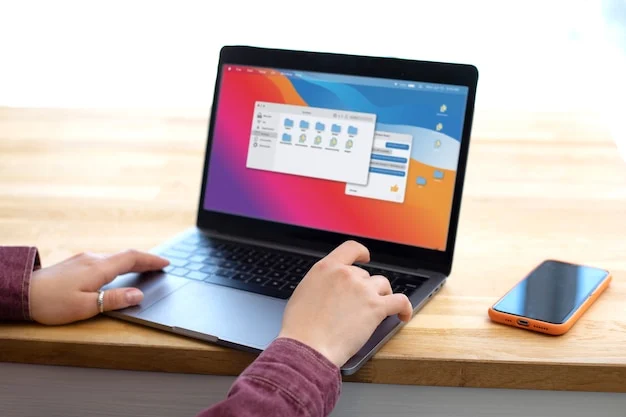
Whether you’re a student, educator, or professional, knowing how to take a screenshot on a Chromebook is an invaluable skill. Screenshots can be used to capture important information, create tutorials, and enhance presentations. In this guide, we’ll explore the most effective methods for capturing screenshots on a Chromebook, utilizing both built-in functionalities and third-party tools. We’ll also address common issues and provide advanced tips for managing your screenshots efficiently.
Introduction
Chromebooks, powered by Chrome OS, offer a range of functionalities that make everyday computing tasks simple and efficient. One of these tasks is taking a screenshot, a feature that is frequently used but sometimes misunderstood. This guide will walk you through various methods to capture your screen on a Chromebook, whether you need a full-screen shot or just a partial capture. We’ll also delve into troubleshooting common issues and explore advanced tools for those seeking more robust screenshot capabilities.
See also 7 Mistakes First-Time Solo Travelers Make That Experienced Nomads Never Repeat in 2026
Method 1: Using Keyboard Shortcuts
Full-screen Screenshot
The simplest way to take a full-screen screenshot on a Chromebook is by using keyboard shortcuts. Follow these steps:
- Locate the Ctrl key on your keyboard.
- Press and hold the Ctrl key, then press the Show Windows key (often depicted as a rectangle with two lines) simultaneously.
- Your screen will briefly flash, indicating that a screenshot has been taken.
The screenshot will be automatically saved to your Downloads folder, accessible via the File Manager.
Partial Screenshot
If you need to capture only a specific part of your screen, a partial screenshot is the way to go:
- Press and hold the Ctrl and Shift keys simultaneously.
- While holding these keys, press the Show Windows key.
- Your cursor will change to a crosshair. Click and drag to select the area of the screen you wish to capture.
- Release the mouse button to take the screenshot.
This partial screenshot will also be saved to your Downloads folder.
Method 2: Using the Stylus (for Convertible Models)
For those using a convertible Chromebook with a touchscreen and stylus, capturing screenshots can be even more intuitive:
Steps to Take a Screenshot with a Stylus
- Tap the stylus icon in the taskbar.
- Select Capture Screen for a full-screen screenshot or Capture Region for a partial screenshot.
- If capturing a region, use the stylus to draw the area you wish to capture.
These screenshots are similarly saved to your Downloads folder for easy access.
Method 3: Using External Tools or Extensions
For users seeking advanced features, several Chrome extensions and third-party tools can enhance your screenshot capabilities:
Recommended Tools and Extensions
- Lightshot: A user-friendly tool that allows for quick editing and sharing of screenshots.
- Awesome Screenshot: Offers advanced editing features and the ability to capture entire web pages.
- Nimbus Screenshot: Provides options for both screenshots and screen recordings, ideal for creating tutorials.
Each of these tools can be added to Chrome from the Web Store and accessed directly from the browser, providing flexibility beyond the default Chromebook screenshot capabilities.
Where to Find and Manage Your Screenshots
Accessing the Downloads Folder
By default, all screenshots taken on a Chromebook are saved to the Downloads folder. To locate your screenshots:
- Open the File Manager by clicking on the Launcher in the bottom-left corner of your screen.
- Select the Downloads folder from the sidebar.
- Your screenshots will appear here, organized by date and time.
Organizing and Sharing Screenshots
For efficient management:
- Create specific folders within the Downloads directory to categorize your screenshots.
- Use the built-in Google Drive integration to upload and share screenshots directly from your Chromebook.
- Utilize image editing tools available on Chrome OS to annotate or modify screenshots before sharing.
Troubleshooting Common Issues
Common Problems and Solutions
Even with straightforward instructions, users may encounter issues. Here are solutions to common problems:
- Screenshot not captured: Ensure all keys are pressed simultaneously. Restart your Chromebook if the issue persists.
- Screenshots not showing: Check the Downloads folder and ensure there is sufficient storage space.
- Partial screenshot not working: Verify that the Ctrl and Shift keys are held while selecting the region.
For persistent issues, consider consulting Chromebook help forums or contacting Chrome OS support for further assistance.
Advanced Tips and Tricks
Optimizing Screenshots for Different Uses
To get the most out of your screenshots:
- For presentations: Use high-resolution screenshots and adjust the format for clarity.
- For educational purposes: Annotate screenshots to highlight key information.
- For remote work: Utilize tools like Google Slides to integrate screenshots into collaborative projects.
Conclusion
Understanding how to take a screenshot on a Chromebook empowers users to capture and share information effectively. Whether using keyboard shortcuts, a stylus, or external tools, these methods cater to diverse needs and preferences. By mastering these techniques and troubleshooting common issues, you can enhance productivity and communication in both personal and professional settings.
We encourage you to explore the various methods outlined in this guide and find the one that best suits your workflow. For additional support, consider joining Chromebook user communities or accessing online resources dedicated to Chrome OS.
Frequently Asked Questions
- How do I take a screenshot on a Chromebook without a keyboard?
- You can use the stylus on convertible Chromebooks or third-party extensions that offer screenshot capabilities without relying on keyboard shortcuts.
- Where are my screenshots saved on a Chromebook?
- All screenshots are saved to the Downloads folder by default.
- Can I edit screenshots directly on my Chromebook?
- Yes, Chrome OS offers basic editing tools, and third-party apps provide more advanced editing features.
- Why isn’t my Chromebook screenshot working?
- Ensure all keys are pressed correctly and that your Chromebook is updated. Restarting your device can also resolve temporary issues.
- Can I use third-party apps to take screenshots on Chromebook?
- Yes, several Chrome extensions and apps offer enhanced screenshot functionalities beyond the default options.
By following this comprehensive guide, you’ll be well-equipped to navigate the nuances of screen capturing on a Chromebook, enhancing your ability to communicate and document effectively.
Author

imahmadmalik0176@gmail.com
Related Posts

Charlize Theron’s Family: Inside the Lives of Her Children Jackson and August
- 0
- 706 words
Charlize Theron, a celebrated Hollywood actress known for her versatile roles and striking performances, is also a devoted mother to her two...
Read out all
Exploring Olivia Rodrigo’s Past Relationship: A Deep Dive into Her Ex-Boyfriend and Its Impact on Her Music
- 0
- 771 words
Olivia Rodrigo burst onto the music scene with a voice that captures the raw emotions of love and heartbreak. Her debut album,...
Read out all
Olivia Rodrigo Boyfriend: Unveiling the Details of Her Romantic Life
- 0
- 684 words
Olivia Rodrigo, the chart-topping singer-songwriter, has captured the hearts of millions with her music and relatable lyrics. As fans immerse themselves in...
Read out all
Does Peyton Manning Have Kids? A Peek Into His Family Life
- 0
- 739 words
Peyton Manning, a name synonymous with NFL greatness, often piques public curiosity about his personal life just as much as his legendary...
Read out all
Peyton Manning’s Kids: A Closer Look at Their Lives and Legacy
- 0
- 792 words
Peyton Manning is not only a legendary NFL quarterback, but he is also a devoted family man. Fans of the Indianapolis Colts...
Read out all
Mandal Parishad School Food Poisoning: A Comprehensive Analysis
- 0
- 893 words
Introduction In a recent alarming incident, several students at a Mandal Parishad School fell ill due to food poisoning, sparking widespread concern...
Read out all